<?xml version="1.0" encoding="utf-8"?><feed xmlns="http://www.w3.org/2005/Atom" ><generator uri="https://jekyllrb.com/" version="3.10.0">Jekyll</generator><link href="https://gigalab.cloud/feed.xml" rel="self" type="application/atom+xml" /><link href="https://gigalab.cloud/" rel="alternate" type="text/html" /><updated>2026-11-14T17:45:18+00:00</updated><id>https://gigalab.cloud/feed.xml</id><title type="html">GigaLab</title><subtitle>Hands-on labs, architectures and lessons learned across Azure, hybrid cloud, networking and security.</subtitle><author><name>Giovanni Garganese</name></author><entry><title type="html">Building a Resilient Site-to-Site VPN between Azure and a UniFi Cloud Gateway with a Dynamic Public IP</title><link href="https://gigalab.cloud/azure/networking/azure-unifi-vpn-dynamic-ip/" rel="alternate" type="text/html" title="Building a Resilient Site-to-Site VPN between Azure and a UniFi Cloud Gateway with a Dynamic Public IP" /><published>2026-11-12T14:00:00+00:00</published><updated>2026-11-12T14:00:00+00:00</updated><id>https://gigalab.cloud/azure/networking/azure-unifi-vpn-dynamic-ip</id><content type="html" xml:base="https://gigalab.cloud/azure/networking/azure-unifi-vpn-dynamic-ip/"><![CDATA[<h2 id="what-were-building">What we’re building</h2>

<p>The goal of this lab is to connect a LAN behind a UniFi UCG Ultra to an Azure virtual network with an IPsec Site-to-Site VPN and keep the tunnel recoverable even when the ISP assigns a new public IPv4 address to the UniFi WAN.</p>

<p>The lab used:</p>

<ul>
  <li>UniFi UCG Ultra with PPPoE and a dynamic public IPv4 address</li>
  <li>UniFi LAN: <code class="language-plaintext highlighter-rouge">192.168.10.0/24</code></li>
  <li>Azure hub VNet: <code class="language-plaintext highlighter-rouge">10.0.0.0/16</code></li>
  <li>Azure VPN Gateway</li>
  <li>Azure Local Network Gateway using an FQDN</li>
  <li>FreeDNS / Afraid.org for DDNS</li>
  <li>UniFi’s Inadyn-based DDNS client</li>
</ul>

<blockquote>
  <p><strong>Privacy note:</strong> every resource name, network prefix, public IP, hostname, identifier and secret shown below is a documentation-only example.</p>
</blockquote>

<h3 id="generic-values-used-throughout-the-article">Generic values used throughout the article</h3>

<table>
  <thead>
    <tr>
      <th>Item</th>
      <th>Documentation value</th>
    </tr>
  </thead>
  <tbody>
    <tr>
      <td>Resource group</td>
      <td><code class="language-plaintext highlighter-rouge">rg-gigalab-network</code></td>
    </tr>
    <tr>
      <td>Azure hub VNet</td>
      <td><code class="language-plaintext highlighter-rouge">hub-vnet-gigalab</code></td>
    </tr>
    <tr>
      <td>Azure hub VNet address space</td>
      <td><code class="language-plaintext highlighter-rouge">10.0.0.0/16</code></td>
    </tr>
    <tr>
      <td>GatewaySubnet</td>
      <td><code class="language-plaintext highlighter-rouge">10.0.0.0/27</code></td>
    </tr>
    <tr>
      <td>Azure workload subnet</td>
      <td><code class="language-plaintext highlighter-rouge">10.0.1.0/24</code></td>
    </tr>
    <tr>
      <td>UniFi LAN</td>
      <td><code class="language-plaintext highlighter-rouge">192.168.10.0/24</code></td>
    </tr>
    <tr>
      <td>Azure VPN Gateway</td>
      <td><code class="language-plaintext highlighter-rouge">vpng-gigalab</code></td>
    </tr>
    <tr>
      <td>Azure VPN public IP example</td>
      <td><code class="language-plaintext highlighter-rouge">198.51.100.10</code></td>
    </tr>
    <tr>
      <td>Local Network Gateway</td>
      <td><code class="language-plaintext highlighter-rouge">lng-unifi</code></td>
    </tr>
    <tr>
      <td>Azure connection</td>
      <td><code class="language-plaintext highlighter-rouge">conn-unifi-azure</code></td>
    </tr>
    <tr>
      <td>DDNS hostname</td>
      <td><code class="language-plaintext highlighter-rouge">vpn.example.com</code></td>
    </tr>
    <tr>
      <td>UCG public IP before change</td>
      <td><code class="language-plaintext highlighter-rouge">203.0.113.10</code></td>
    </tr>
    <tr>
      <td>UCG public IP after change</td>
      <td><code class="language-plaintext highlighter-rouge">203.0.113.27</code></td>
    </tr>
    <tr>
      <td>Pre-shared key</td>
      <td><code class="language-plaintext highlighter-rouge">&lt;YOUR-STRONG-PSK&gt;</code></td>
    </tr>
  </tbody>
</table>

<p>The public IPv4 ranges <code class="language-plaintext highlighter-rouge">192.0.2.0/24</code>, <code class="language-plaintext highlighter-rouge">198.51.100.0/24</code> and <code class="language-plaintext highlighter-rouge">203.0.113.0/24</code> are reserved for documentation and examples.</p>

<p>The Azure VNet is deliberately named <code class="language-plaintext highlighter-rouge">hub-vnet-gigalab</code>. This first article uses it as the VPN landing zone, while leaving room to evolve the same GigaLab environment into a hub-and-spoke topology and later compare that design with Azure Virtual WAN.</p>

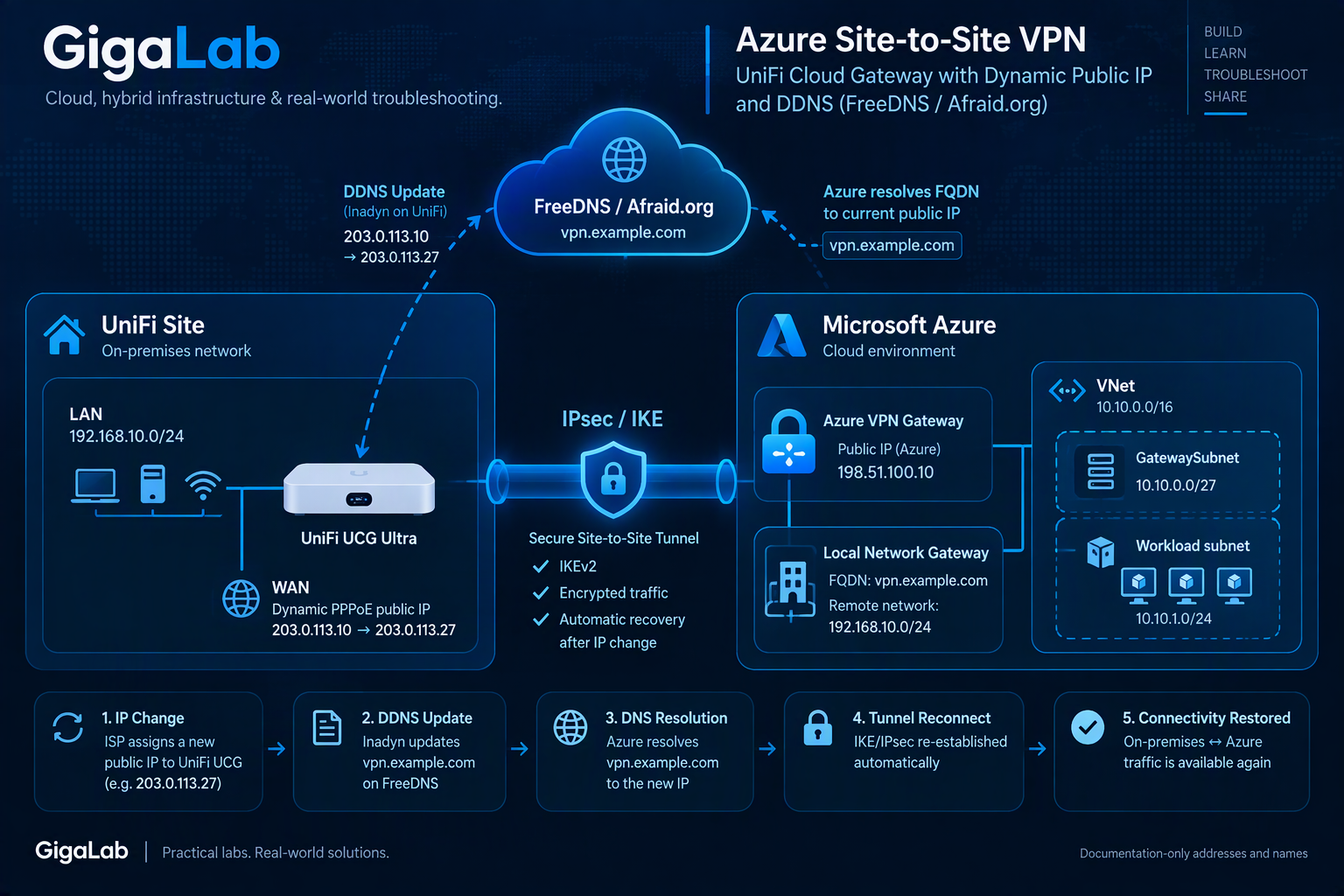
<p><a href="/assets/images/01-architecture.png" class="article-image-link" data-lightbox="" aria-label="Open architecture diagram"><img src="/assets/images/01-architecture.png" alt="Azure and UniFi Site-to-Site VPN architecture" /></a></p>

<p><em>Figure 1. End-to-end architecture for the Azure and UniFi Site-to-Site VPN with Dynamic DNS.</em></p>

<h2 id="1-plan-the-networks">1. Plan the networks</h2>

<p>The two sides must use non-overlapping address spaces.</p>

<table>
  <thead>
    <tr>
      <th>Side</th>
      <th>Address space</th>
    </tr>
  </thead>
  <tbody>
    <tr>
      <td>UniFi LAN</td>
      <td><code class="language-plaintext highlighter-rouge">192.168.10.0/24</code></td>
    </tr>
    <tr>
      <td>Azure hub VNet</td>
      <td><code class="language-plaintext highlighter-rouge">10.0.0.0/16</code></td>
    </tr>
    <tr>
      <td>Azure workload subnet</td>
      <td><code class="language-plaintext highlighter-rouge">10.0.1.0/24</code></td>
    </tr>
  </tbody>
</table>

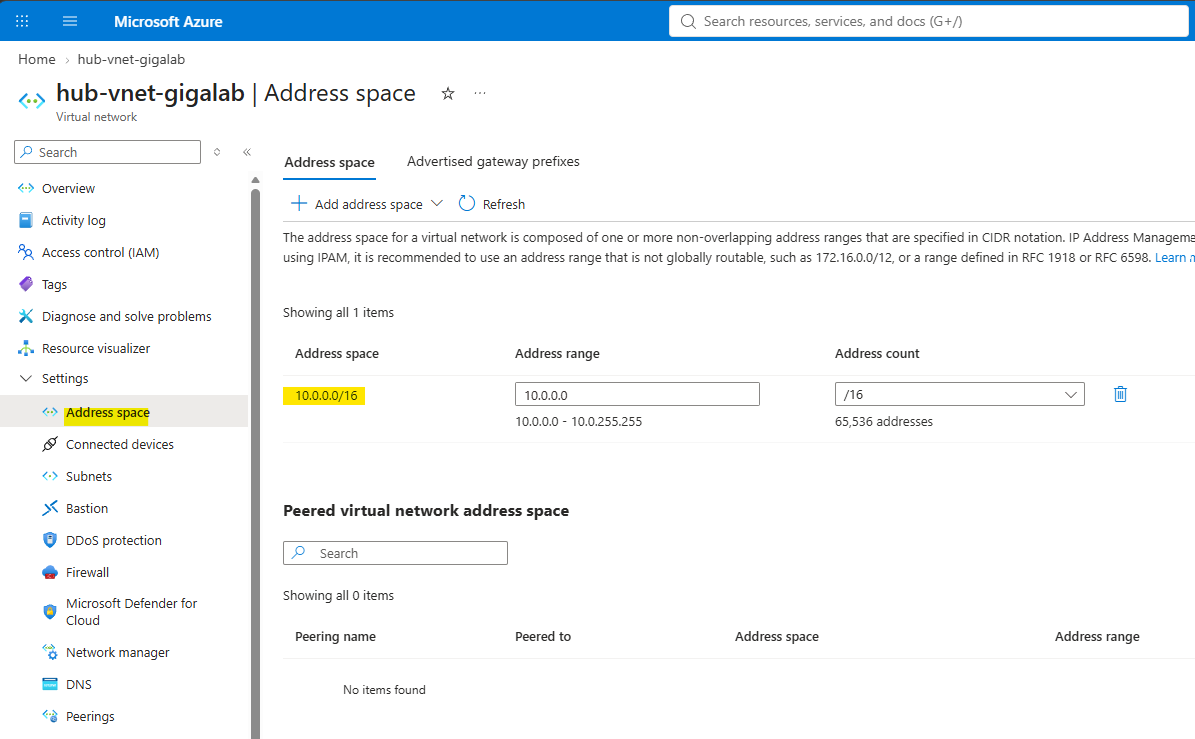
<p>On Azure, review the VNet and its subnets before creating the gateway.</p>

<p><a href="/assets/images/02-azure-vnet.png" class="article-image-link" data-lightbox="" aria-label="Open Azure hub VNet address space screenshot"><img src="/assets/images/02-azure-vnet.png" alt="Azure hub virtual network address space configuration" /></a></p>

<p><em>Figure 2. Address space of the Azure hub virtual network used as the VPN landing zone. Sensitive identifiers have been redacted.</em></p>

<h2 id="2-create-or-prepare-the-azure-hub-vnet-and-gatewaysubnet">2. Create or prepare the Azure hub VNet and GatewaySubnet</h2>

<p>Create or reuse the documentation hub VNet, <code class="language-plaintext highlighter-rouge">hub-vnet-gigalab</code>. Then create a dedicated subnet named exactly:</p>

<div class="language-text highlighter-rouge"><div class="highlight"><pre class="highlight"><code>GatewaySubnet
</code></pre></div></div>

<p><code class="language-plaintext highlighter-rouge">GatewaySubnet</code> is reserved for the virtual network gateway. Do not deploy regular workloads into it.</p>

<p>For this documentation-only example, use the following subnet plan:</p>

<div class="language-text highlighter-rouge"><div class="highlight"><pre class="highlight"><code>Hub VNet:         10.0.0.0/16
GatewaySubnet:    10.0.0.0/27
Workload subnet:  10.0.1.0/24
</code></pre></div></div>

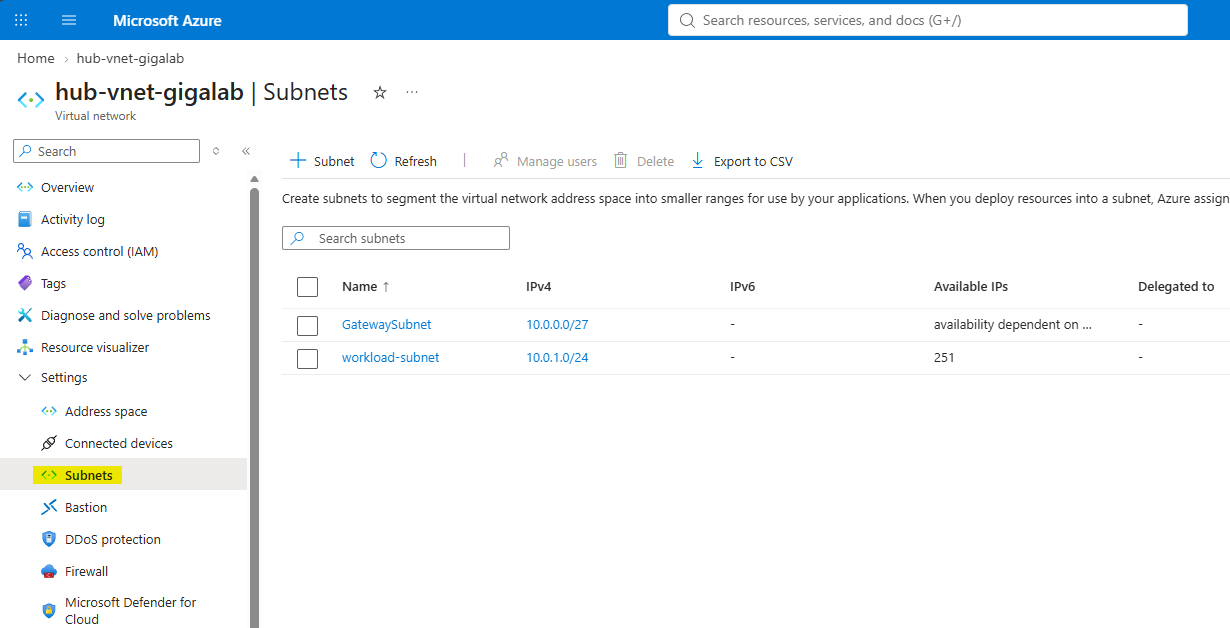
<p><a href="/assets/images/03-gateway-subnet.png" class="article-image-link" data-lightbox="" aria-label="Open Azure hub VNet subnet configuration screenshot"><img src="/assets/images/03-gateway-subnet.png" alt="Azure hub virtual network subnet configuration" /></a></p>

<p><em>Figure 3. Subnet layout of the Azure hub VNet, separating the VPN gateway infrastructure from application workloads.</em></p>

<h2 id="3-deploy-azure-vpn-gateway">3. Deploy Azure VPN Gateway</h2>

<p>Create a <strong>Virtual network gateway</strong> and associate it with the hub VNet.</p>

<p>The key design choices are:</p>

<div class="language-text highlighter-rouge"><div class="highlight"><pre class="highlight"><code>Gateway type:        VPN
VPN type:            Route-based
Virtual network:     hub-vnet-gigalab
Public IP example:   198.51.100.10
</code></pre></div></div>

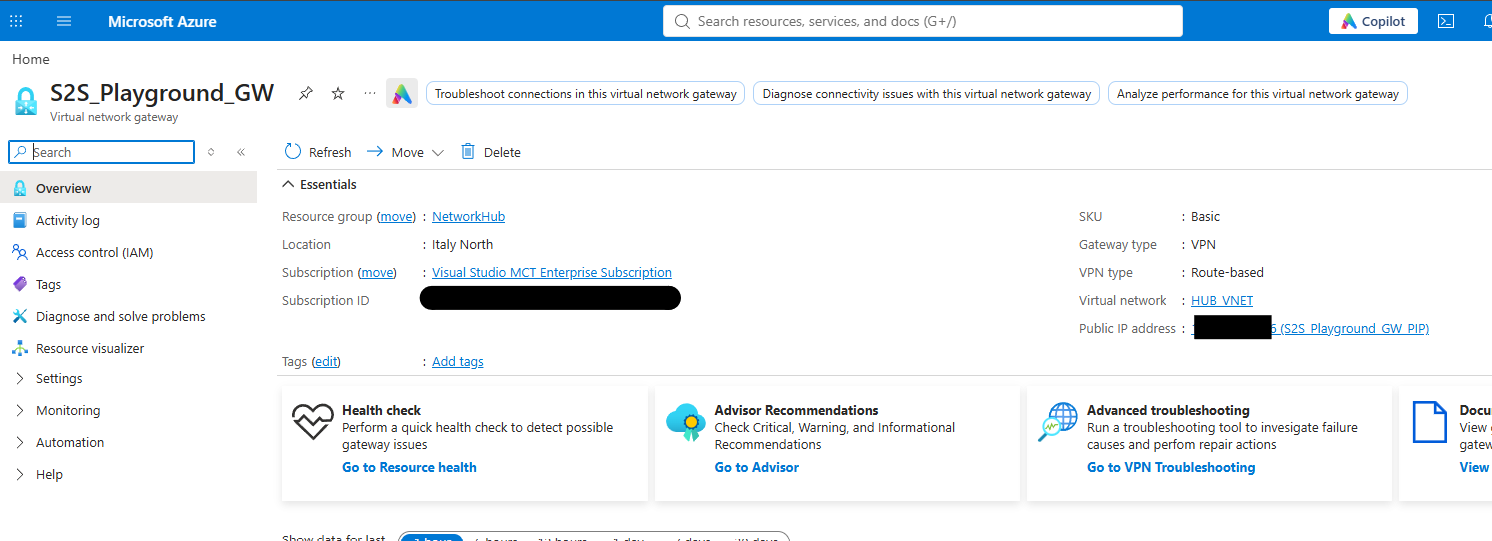
<p>The public IP of Azure VPN Gateway becomes the remote peer configured on the UCG. In this article, <code class="language-plaintext highlighter-rouge">198.51.100.10</code> is used as a documentation-only example.</p>

<p>Select an Azure VPN Gateway SKU appropriate to the expected throughput, availability and feature requirements. The example deliberately avoids exposing the SKU used in the private lab.</p>

<p><a href="/assets/images/04-azure-vpn-gateway.png" class="article-image-link" data-lightbox="" aria-label="Open Azure VPN Gateway screenshot"><img src="/assets/images/04-azure-vpn-gateway.png" alt="Azure VPN Gateway overview" /></a></p>

<p><em>Figure 4. Azure VPN Gateway overview with gateway type, VPN type, SKU and public IP.</em></p>

<h2 id="4-create-the-ddns-hostname">4. Create the DDNS hostname</h2>

<p>Because the UCG WAN address is assigned dynamically via PPPoE, Azure should not depend on a fixed UniFi public IP.</p>

<p>Create an A record with FreeDNS/Afraid. The published examples use:</p>

<div class="language-text highlighter-rouge"><div class="highlight"><pre class="highlight"><code>vpn.example.com
</code></pre></div></div>

<p>At this point the record only needs to exist. Automatic updates from the UCG are configured later.</p>

<p><a href="/assets/images/05-freedns-record.png" class="article-image-link" data-lightbox="" aria-label="Open FreeDNS record screenshot"><img src="/assets/images/05-freedns-record.png" alt="FreeDNS Dynamic DNS record" /></a></p>

<p><em>Figure 5. FreeDNS Dynamic DNS record. Never expose its Direct URL or update key.</em></p>

<h2 id="5-create-the-azure-local-network-gateway-with-an-fqdn">5. Create the Azure Local Network Gateway with an FQDN</h2>

<p>Create a <strong>Local network gateway</strong> representing the UniFi location.</p>

<p>Use the DDNS name as the peer endpoint and the LAN behind the UCG as the remote address space:</p>

<div class="language-text highlighter-rouge"><div class="highlight"><pre class="highlight"><code>Endpoint type:  FQDN
FQDN:           vpn.example.com
Address space:  192.168.10.0/24
</code></pre></div></div>

<p>This is the central design choice. Azure continues to refer to the same hostname even if the ISP changes the UCG public IP.</p>

<p><a href="/assets/images/06-local-network-gateway.png" class="article-image-link" data-lightbox="" aria-label="Open Azure Local Network Gateway screenshot"><img src="/assets/images/06-local-network-gateway.png" alt="Azure Local Network Gateway configured with an FQDN" /></a></p>

<p><em>Figure 6. Azure Local Network Gateway configured with the DDNS FQDN and the generic UniFi LAN prefix.</em></p>

<h2 id="6-create-the-azure-site-to-site-connection">6. Create the Azure Site-to-Site connection</h2>

<p>Create a connection between the Azure VPN Gateway and the Local Network Gateway.</p>

<div class="language-text highlighter-rouge"><div class="highlight"><pre class="highlight"><code>Connection type:           Site-to-site (IPsec)
Virtual network gateway:   &lt;Azure VPN Gateway&gt;
Local network gateway:     &lt;UniFi Local Network Gateway&gt;
Shared key (PSK):           &lt;YOUR-STRONG-PSK&gt;
</code></pre></div></div>

<p>Store the PSK securely. The exact same value is configured on UniFi.</p>

<p><a href="/assets/images/07-azure-connection.png" class="article-image-link" data-lightbox="" aria-label="Open Azure Site-to-Site connection screenshot"><img src="/assets/images/07-azure-connection.png" alt="Azure Site-to-Site VPN connection configuration" /></a></p>

<p><em>Figure 7. Azure Site-to-Site connection. The shared key must be fully redacted.</em></p>

<h2 id="7-configure-the-ipsec-site-to-site-vpn-on-the-ucg">7. Configure the IPsec Site-to-Site VPN on the UCG</h2>

<p>In UniFi Network, open:</p>

<div class="language-text highlighter-rouge"><div class="highlight"><pre class="highlight"><code>Settings -&gt; VPN -&gt; Site-to-Site VPN
</code></pre></div></div>

<p>Create a manual IPsec connection to Azure.</p>

<p>The peer relationship is:</p>

<div class="language-text highlighter-rouge"><div class="highlight"><pre class="highlight"><code>UniFi                                     Azure
-----                                     -----
WAN1 / PPPoE public IP  &lt;------------&gt;    VPN Gateway public IP
192.168.10.0/24          &lt;------------&gt;    10.0.0.0/16
</code></pre></div></div>

<p>Configure:</p>

<ul>
  <li>Azure VPN Gateway documentation IP <code class="language-plaintext highlighter-rouge">198.51.100.10</code> as <strong>Remote IP / Hostname</strong></li>
  <li>the same PSK configured in Azure</li>
  <li>the Azure VNet prefix(es) as the remote networks/routes required by the VPN mode</li>
  <li>compatible IKE/IPsec parameters on both peers</li>
</ul>

<h3 id="configure-a-generic-matching-ipsec-proposal">Configure a generic, matching IPsec proposal</h3>

<p>Both peers must use mutually compatible settings. Azure can use its default proposal set for broad interoperability, or you can configure an explicit custom policy on the Azure connection. If a custom policy is used, the UCG must support and match the selected parameters.</p>

<table>
  <thead>
    <tr>
      <th>Setting</th>
      <th>Documentation guidance</th>
    </tr>
  </thead>
  <tbody>
    <tr>
      <td>VPN mode</td>
      <td>Route-based on both Azure and UniFi</td>
    </tr>
    <tr>
      <td>IKE version</td>
      <td>IKEv2</td>
    </tr>
    <tr>
      <td>Encryption</td>
      <td>Azure default proposals, or an explicitly documented matching custom policy</td>
    </tr>
    <tr>
      <td>Integrity/hash</td>
      <td>Azure default proposals, or an explicitly documented matching custom policy</td>
    </tr>
    <tr>
      <td>DH group</td>
      <td>Must be supported and matched by both peers</td>
    </tr>
    <tr>
      <td>PFS</td>
      <td>Must be supported and matched by both peers</td>
    </tr>
    <tr>
      <td>IKE lifetime</td>
      <td>Keep compatible on both peers</td>
    </tr>
    <tr>
      <td>IPsec/Quick Mode lifetime</td>
      <td>Keep compatible on both peers</td>
    </tr>
    <tr>
      <td>Remote networks</td>
      <td><code class="language-plaintext highlighter-rouge">10.0.0.0/16</code></td>
    </tr>
    <tr>
      <td>Remote peer</td>
      <td>Azure VPN Gateway public IP</td>
    </tr>
  </tbody>
</table>

<p><a href="/assets/images/08-unifi-s2s.png" class="article-image-link" data-lightbox="" aria-label="Open UniFi Site-to-Site VPN screenshot"><img src="/assets/images/08-unifi-s2s.png" alt="UniFi Site-to-Site VPN configuration" /></a></p>

<p><em>Figure 8. UniFi Site-to-Site VPN configuration.</em></p>

<p><a href="/assets/images/09-unifi-ipsec-advanced.png" class="article-image-link" data-lightbox="" aria-label="Open UniFi IPsec advanced settings screenshot"><img src="/assets/images/09-unifi-ipsec-advanced.png" alt="UniFi IPsec advanced settings" /></a></p>

<p><em>Figure 9. IKE and IPsec settings used to establish interoperability. Redact the PSK and any sensitive identifiers.</em></p>

<h2 id="8-establish-the-tunnel-and-test-connectivity-first">8. Establish the tunnel and test connectivity first</h2>

<p>Before adding DDNS automation, verify that the basic IPsec tunnel works.</p>

<p>UniFi should report the tunnel as:</p>

<div class="language-text highlighter-rouge"><div class="highlight"><pre class="highlight"><code>Status:           Established
VPN Type:         IPsec
Interface:        WAN1
Remote IP / Host: 198.51.100.10
</code></pre></div></div>

<p>Test between actual endpoints behind each gateway, not just between the gateways themselves.</p>

<p>For validation, deploy or use a test workload in <code class="language-plaintext highlighter-rouge">10.0.1.0/24</code>, for example <code class="language-plaintext highlighter-rouge">10.0.1.4</code>.</p>

<p><a href="/assets/images/10-unifi-established.png" class="article-image-link" data-lightbox="" aria-label="Open UniFi established tunnel screenshot"><img src="/assets/images/10-unifi-established.png" alt="UniFi Site-to-Site VPN established status" /></a></p>

<p><em>Figure 10. UniFi reporting the Azure IPsec tunnel as Established.</em></p>

<p><a href="/assets/images/11-azure-connected.png" class="article-image-link" data-lightbox="" aria-label="Open Azure connected VPN screenshot"><img src="/assets/images/11-azure-connected.png" alt="Azure Site-to-Site VPN connected status" /></a></p>

<p><em>Figure 11. Azure reporting the Site-to-Site connection as Connected.</em></p>

<h2 id="9-configure-dynamic-dns-on-unifi">9. Configure Dynamic DNS on UniFi</h2>

<p>Now configure the WAN DDNS profile:</p>

<div class="language-text highlighter-rouge"><div class="highlight"><pre class="highlight"><code>Service:   Afraid
Hostname:  vpn.example.com
Username:  &lt;FreeDNS UserID&gt;
Password:  &lt;FreeDNS password&gt;
Server:    empty
</code></pre></div></div>

<p>The important detail from this lab is that the working username was the <strong>FreeDNS UserID</strong>, not the e-mail address associated with the account.</p>

<p><a href="/assets/images/12-unifi-ddns.png" class="article-image-link" data-lightbox="" aria-label="Open UniFi Dynamic DNS screenshot"><img src="/assets/images/12-unifi-ddns.png" alt="UniFi Dynamic DNS configuration for FreeDNS Afraid" /></a></p>

<p><em>Figure 12. Working UniFi Afraid/FreeDNS DDNS settings. Redact password and account identifiers.</em></p>

<h2 id="10-troubleshooting-ddns-did-not-update-after-reboot">10. Troubleshooting: DDNS did not update after reboot</h2>

<p>After a UCG reboot, PPPoE could receive a new public IPv4 address, but initially the DNS record did not follow it.</p>

<p>Instead of changing the VPN, I checked the DDNS pipeline layer by layer.</p>

<h3 id="confirm-inadyn-is-running">Confirm Inadyn is running</h3>

<div class="language-bash highlighter-rouge"><div class="highlight"><pre class="highlight"><code>ps <span class="nt">-ax</span> | <span class="nb">grep </span>inadyn
</code></pre></div></div>

<p>The process showed an Inadyn instance bound to <code class="language-plaintext highlighter-rouge">ppp0</code> and a generated runtime configuration file.</p>

<h3 id="inspect-the-generated-configuration">Inspect the generated configuration</h3>

<div class="language-bash highlighter-rouge"><div class="highlight"><pre class="highlight"><code><span class="nb">cat</span> /run/ddns-ppp0-inadyn.conf
</code></pre></div></div>

<p>Conceptually:</p>

<div class="language-text highlighter-rouge"><div class="highlight"><pre class="highlight"><code>iface = ppp0

provider afraid:1 {
    hostname = "vpn.example.com"
    username = "&lt;configured username&gt;"
    password = "&lt;password&gt;"
}
</code></pre></div></div>

<blockquote>
  <p><strong>Security warning:</strong> the generated file can expose the DDNS password in clear text. Never publish an unredacted output.</p>
</blockquote>

<p><a href="/assets/images/13-inadyn-config.png" class="article-image-link" data-lightbox="" aria-label="Open sanitized Inadyn configuration screenshot"><img src="/assets/images/13-inadyn-config.png" alt="Sanitized Inadyn runtime configuration" /></a></p>

<p><em>Figure 13. Sanitized Inadyn runtime configuration.</em></p>

<h3 id="read-the-inadyn-logs">Read the Inadyn logs</h3>

<div class="language-bash highlighter-rouge"><div class="highlight"><pre class="highlight"><code>journalctl | <span class="nb">grep</span> <span class="nt">-i</span> inadyn | <span class="nb">tail</span> <span class="nt">-50</span>
</code></pre></div></div>

<p>The relevant failure was:</p>

<div class="language-text highlighter-rouge"><div class="highlight"><pre class="highlight"><code>Update forced for alias vpn.example.com, new IP# 203.0.113.10
=&gt; ERROR: Could not authenticate.
</code></pre></div></div>

<p>This isolated the failure nicely. PPPoE was up, Inadyn was running, the new address was detected and an update was attempted. Authentication was the failing layer.</p>

<p><a href="/assets/images/14-inadyn-auth-error.png" class="article-image-link" data-lightbox="" aria-label="Open Inadyn authentication error screenshot"><img src="/assets/images/14-inadyn-auth-error.png" alt="Inadyn Could not authenticate error" /></a></p>

<p><em>Figure 14. The <code class="language-plaintext highlighter-rouge">Could not authenticate</code> error, sanitized for publication.</em></p>

<h2 id="11-root-cause-freedns-userid-vs-e-mail-address">11. Root cause: FreeDNS UserID vs e-mail address</h2>

<p>The FreeDNS account exposes an e-mail address and a separate <strong>UserID</strong>.</p>

<p>The original UCG profile used the e-mail address as its username. After replacing it with the FreeDNS UserID, Inadyn restarted and the update succeeded:</p>

<div class="language-text highlighter-rouge"><div class="highlight"><pre class="highlight"><code>In-a-dyn version 2.13.0 -- Dynamic DNS update client.
Guessing DDNS plugin 'default@freedns.afraid.org' from 'afraid:1'
Update forced for alias vpn.example.com, new IP# 203.0.113.10
Updating IPv4 cache for vpn.example.com
</code></pre></div></div>

<p>No custom Server/Update URL was required in the working UniFi configuration.</p>

<p><a href="/assets/images/15-freedns-userid.png" class="article-image-link" data-lightbox="" aria-label="Open FreeDNS account fields screenshot"><img src="/assets/images/15-freedns-userid.png" alt="FreeDNS UserID and email fields" /></a></p>

<p><em>Figure 15. FreeDNS exposes UserID separately from e-mail. Redact both real values.</em></p>

<p><a href="/assets/images/16-inadyn-success.png" class="article-image-link" data-lightbox="" aria-label="Open successful Inadyn update screenshot"><img src="/assets/images/16-inadyn-success.png" alt="Successful Inadyn Dynamic DNS update" /></a></p>

<p><em>Figure 16. Successful Inadyn update after correcting the UserID.</em></p>

<h2 id="12-definitive-recovery-test">12. Definitive recovery test</h2>

<p>The definitive test was a real UCG reboot.</p>

<h3 id="step-1-capture-the-current-public-ip">Step 1: capture the current public IP</h3>

<div class="language-bash highlighter-rouge"><div class="highlight"><pre class="highlight"><code>ip <span class="nt">-4</span> addr show ppp0
</code></pre></div></div>

<h3 id="step-2-reboot-the-ucg">Step 2: reboot the UCG</h3>

<p>After the reboot, PPPoE assigned a different public address.</p>

<p>Sanitized example:</p>

<div class="language-text highlighter-rouge"><div class="highlight"><pre class="highlight"><code>inet 203.0.113.27 peer 172.16.255.8/32 scope global ppp0
</code></pre></div></div>

<h3 id="step-3-watch-ddns-recovery">Step 3: watch DDNS recovery</h3>

<div class="language-bash highlighter-rouge"><div class="highlight"><pre class="highlight"><code>journalctl <span class="nt">-f</span> | <span class="nb">grep</span> <span class="nt">-i</span> inadyn
</code></pre></div></div>

<p>The expected update appeared:</p>

<div class="language-text highlighter-rouge"><div class="highlight"><pre class="highlight"><code>Update needed for alias vpn.example.com, new IP# 203.0.113.27
Updating IPv4 cache for vpn.example.com
</code></pre></div></div>

<h3 id="step-4-verify-public-dns">Step 4: verify public DNS</h3>

<div class="language-powershell highlighter-rouge"><div class="highlight"><pre class="highlight"><code><span class="n">Resolve-DnsName</span><span class="w"> </span><span class="nx">vpn.example.com</span><span class="w">
</span></code></pre></div></div>

<p>The A record matched the new PPPoE public IP. In the test, the FreeDNS answer had a TTL of 60 seconds. Tunnel recovery can take longer than the DNS TTL because it also depends on DNS re-resolution, IKE retry timers and IPsec renegotiation.</p>

<p><a href="/assets/images/17-dns-after-reboot.png" class="article-image-link" data-lightbox="" aria-label="Open DNS resolution screenshot"><img src="/assets/images/17-dns-after-reboot.png" alt="DNS resolution after the UCG public IP changed" /></a></p>

<p><em>Figure 17. FQDN resolving to the new public IPv4 address after reboot.</em></p>

<h3 id="step-5-verify-ipsec-recovery">Step 5: verify IPsec recovery</h3>

<p>After the DNS update and IKE/IPsec renegotiation, UniFi reported:</p>

<div class="language-text highlighter-rouge"><div class="highlight"><pre class="highlight"><code>Status:           Established
VPN Type:         IPsec
Local IP:         &lt;new PPPoE public IPv4&gt;
Interface:        WAN1
Remote IP / Host: 198.51.100.10
</code></pre></div></div>

<p><a href="/assets/images/18-vpn-recovered.png" class="article-image-link" data-lightbox="" aria-label="Open recovered VPN screenshot"><img src="/assets/images/18-vpn-recovered.png" alt="UniFi Site-to-Site VPN recovered after the public IP changed" /></a></p>

<p><em>Figure 18. The Site-to-Site VPN recovered using the newly assigned PPPoE public IP.</em></p>

<p>I repeated the reboot <strong>a second time</strong>. The VPN recovered again without manually changing either Azure or UniFi.</p>

<p>The recovery path is therefore:</p>

<div class="language-text highlighter-rouge"><div class="highlight"><pre class="highlight"><code>UCG boot
  -&gt; PPPoE establishment
  -&gt; new public IPv4
  -&gt; Inadyn detects the change
  -&gt; FreeDNS updates the A record
  -&gt; DNS refresh
  -&gt; IKE/IPsec renegotiation
  -&gt; tunnel Established
</code></pre></div></div>

<p>Recovery is not instantaneous because every stage in that sequence takes some time.</p>

<h2 id="13-troubleshooting-runbook">13. Troubleshooting runbook</h2>

<h3 id="the-vpn-never-establishes-during-the-initial-build">The VPN never establishes during the initial build</h3>

<p>Check, in order:</p>

<ol>
  <li>Azure VPN Gateway has a public IP.</li>
  <li>Azure Local Network Gateway contains the correct UniFi LAN prefixes.</li>
  <li>Azure and UniFi use the same PSK.</li>
  <li>VPN mode expectations match.</li>
  <li>IKE version, encryption, integrity, DH/PFS and lifetimes match.</li>
  <li>Azure and UniFi address spaces do not overlap.</li>
  <li>Firewall and traffic rules permit the required traffic.</li>
</ol>

<h3 id="the-vpn-worked-until-the-isp-changed-the-ucg-address">The VPN worked until the ISP changed the UCG address</h3>

<p>Check the UCG WAN address:</p>

<div class="language-bash highlighter-rouge"><div class="highlight"><pre class="highlight"><code>ip <span class="nt">-4</span> addr show ppp0
</code></pre></div></div>

<p>Then resolve the FQDN:</p>

<div class="language-powershell highlighter-rouge"><div class="highlight"><pre class="highlight"><code><span class="n">Resolve-DnsName</span><span class="w"> </span><span class="nx">vpn.example.com</span><span class="w">
</span></code></pre></div></div>

<p>If they differ, troubleshoot DDNS before touching IPsec.</p>

<h3 id="the-ddns-record-is-stale">The DDNS record is stale</h3>

<div class="language-bash highlighter-rouge"><div class="highlight"><pre class="highlight"><code>ps <span class="nt">-ax</span> | <span class="nb">grep </span>inadyn
</code></pre></div></div>

<div class="language-bash highlighter-rouge"><div class="highlight"><pre class="highlight"><code>journalctl | <span class="nb">grep</span> <span class="nt">-i</span> inadyn | <span class="nb">tail</span> <span class="nt">-50</span>
</code></pre></div></div>

<p>For live monitoring:</p>

<div class="language-bash highlighter-rouge"><div class="highlight"><pre class="highlight"><code>journalctl <span class="nt">-f</span> | <span class="nb">grep</span> <span class="nt">-i</span> inadyn
</code></pre></div></div>

<h3 id="error-could-not-authenticate"><code class="language-plaintext highlighter-rouge">ERROR: Could not authenticate.</code></h3>

<p>Verify:</p>

<ul>
  <li>FreeDNS <strong>UserID</strong>, not only the account e-mail</li>
  <li>password</li>
  <li>hostname</li>
  <li>generated Inadyn configuration</li>
</ul>

<h3 id="dns-is-correct-but-the-tunnel-is-still-down">DNS is correct but the tunnel is still down</h3>

<p>Move the investigation to IPsec:</p>

<ul>
  <li>Azure Connection status</li>
  <li>peer public IPs</li>
  <li>PSK</li>
  <li>IKE negotiation</li>
  <li>IKE/ESP proposals</li>
  <li>routing/traffic selectors</li>
  <li>firewall rules</li>
</ul>

<h3 id="the-tunnel-is-established-but-workloads-cannot-communicate">The tunnel is Established but workloads cannot communicate</h3>

<p>Treat this as a routing/security problem:</p>

<ul>
  <li>verify remote and local prefixes</li>
  <li>inspect Azure effective routes</li>
  <li>inspect NSGs and host firewalls</li>
  <li>inspect UniFi firewall/traffic rules</li>
  <li>test between real clients on both networks</li>
</ul>

<h2 id="14-quick-symptom-matrix">14. Quick symptom matrix</h2>

<table>
  <thead>
    <tr>
      <th>Symptom</th>
      <th>First check</th>
      <th>Next check</th>
    </tr>
  </thead>
  <tbody>
    <tr>
      <td>VPN never establishes</td>
      <td>PSK and peer addresses</td>
      <td>IKE/IPsec proposals</td>
    </tr>
    <tr>
      <td>VPN drops after ISP reconnect</td>
      <td><code class="language-plaintext highlighter-rouge">ppp0</code> public address</td>
      <td>DDNS A record</td>
    </tr>
    <tr>
      <td>DNS points to old IP</td>
      <td>Inadyn logs</td>
      <td>FreeDNS UserID/credentials</td>
    </tr>
    <tr>
      <td><code class="language-plaintext highlighter-rouge">Could not authenticate</code></td>
      <td>FreeDNS UserID</td>
      <td>Password and hostname</td>
    </tr>
    <tr>
      <td>DNS is correct, tunnel down</td>
      <td>Azure Connection</td>
      <td>IKE/IPsec negotiation</td>
    </tr>
    <tr>
      <td>Tunnel established, no traffic</td>
      <td>Routes and prefixes</td>
      <td>NSG/firewall/traffic rules</td>
    </tr>
  </tbody>
</table>

<h2 id="15-lessons-learned">15. Lessons learned</h2>

<p>The most useful troubleshooting approach was to treat the solution as a dependency chain instead of one large VPN problem:</p>

<div class="language-text highlighter-rouge"><div class="highlight"><pre class="highlight"><code>UCG WAN / PPPoE
      |
      v
Inadyn
      |
      v
FreeDNS A record
      |
      v
Azure Local Network Gateway FQDN
      |
      v
IKE / IPsec
      |
      v
Tunnel Established
      |
      v
Workload connectivity
</code></pre></div></div>

<p>That makes it much easier to distinguish a DDNS authentication failure from an Azure VPN problem, or a routing/firewall problem from a tunnel-establishment problem.</p>

<h2 id="references">References</h2>

<ul>
  <li><a href="https://learn.microsoft.com/en-us/azure/vpn-gateway/tutorial-site-to-site-portal">Microsoft Learn - Tutorial: Create a site-to-site VPN connection in the Azure portal</a></li>
  <li><a href="https://learn.microsoft.com/en-us/azure/vpn-gateway/vpn-gateway-about-vpngateways">Microsoft Learn - What is Azure VPN Gateway?</a></li>
  <li><a href="https://help.ui.com/hc/en-us/articles/7983431932439-UniFi-Gateway-Site-to-Site-IPsec-VPN-with-Third-Party-Gateways-Advanced">Ubiquiti Help Center - UniFi Gateway: Site-to-Site IPsec VPN with Third-Party Gateways (Advanced)</a></li>
  <li><a href="https://help.ui.com/hc/en-us/articles/9203184738583-UniFi-Gateway-Dynamic-DNS">Ubiquiti Help Center - UniFi Gateway: Dynamic DNS</a></li>
</ul>]]></content><author><name>Giovanni Garganese</name></author><category term="Azure" /><category term="Networking" /><category term="Azure VPN Gateway" /><category term="UniFi" /><category term="UCG Ultra" /><category term="IPsec" /><category term="DDNS" /><category term="FreeDNS" /><summary type="html"><![CDATA[An end-to-end lab: build the Azure and UniFi Site-to-Site VPN, add an FQDN-based dynamic peer, troubleshoot FreeDNS/Inadyn, and validate tunnel recovery after WAN IP changes.]]></summary></entry></feed>