Building a Resilient Site-to-Site VPN between Azure and a UniFi Cloud Gateway with a Dynamic Public IP
An end-to-end lab: build the Azure and UniFi Site-to-Site VPN, add an FQDN-based dynamic peer, troubleshoot FreeDNS/Inadyn, and validate tunnel recovery after WAN IP changes.
What we’re building
The goal of this lab is to connect a LAN behind a UniFi UCG Ultra to an Azure virtual network with an IPsec Site-to-Site VPN and keep the tunnel recoverable even when the ISP assigns a new public IPv4 address to the UniFi WAN.
The lab used:
- UniFi UCG Ultra with PPPoE and a dynamic public IPv4 address
- UniFi LAN:
192.168.10.0/24 - Azure hub VNet:
10.0.0.0/16 - Azure VPN Gateway
- Azure Local Network Gateway using an FQDN
- FreeDNS / Afraid.org for DDNS
- UniFi’s Inadyn-based DDNS client
Privacy note: every resource name, network prefix, public IP, hostname, identifier and secret shown below is a documentation-only example.
Generic values used throughout the article
| Item | Documentation value |
|---|---|
| Resource group | rg-gigalab-network |
| Azure hub VNet | hub-vnet-gigalab |
| Azure hub VNet address space | 10.0.0.0/16 |
| GatewaySubnet | 10.0.0.0/27 |
| Azure workload subnet | 10.0.1.0/24 |
| UniFi LAN | 192.168.10.0/24 |
| Azure VPN Gateway | vpng-gigalab |
| Azure VPN public IP example | 198.51.100.10 |
| Local Network Gateway | lng-unifi |
| Azure connection | conn-unifi-azure |
| DDNS hostname | vpn.example.com |
| UCG public IP before change | 203.0.113.10 |
| UCG public IP after change | 203.0.113.27 |
| Pre-shared key | <YOUR-STRONG-PSK> |
The public IPv4 ranges 192.0.2.0/24, 198.51.100.0/24 and 203.0.113.0/24 are reserved for documentation and examples.
The Azure VNet is deliberately named hub-vnet-gigalab. This first article uses it as the VPN landing zone, while leaving room to evolve the same GigaLab environment into a hub-and-spoke topology and later compare that design with Azure Virtual WAN.
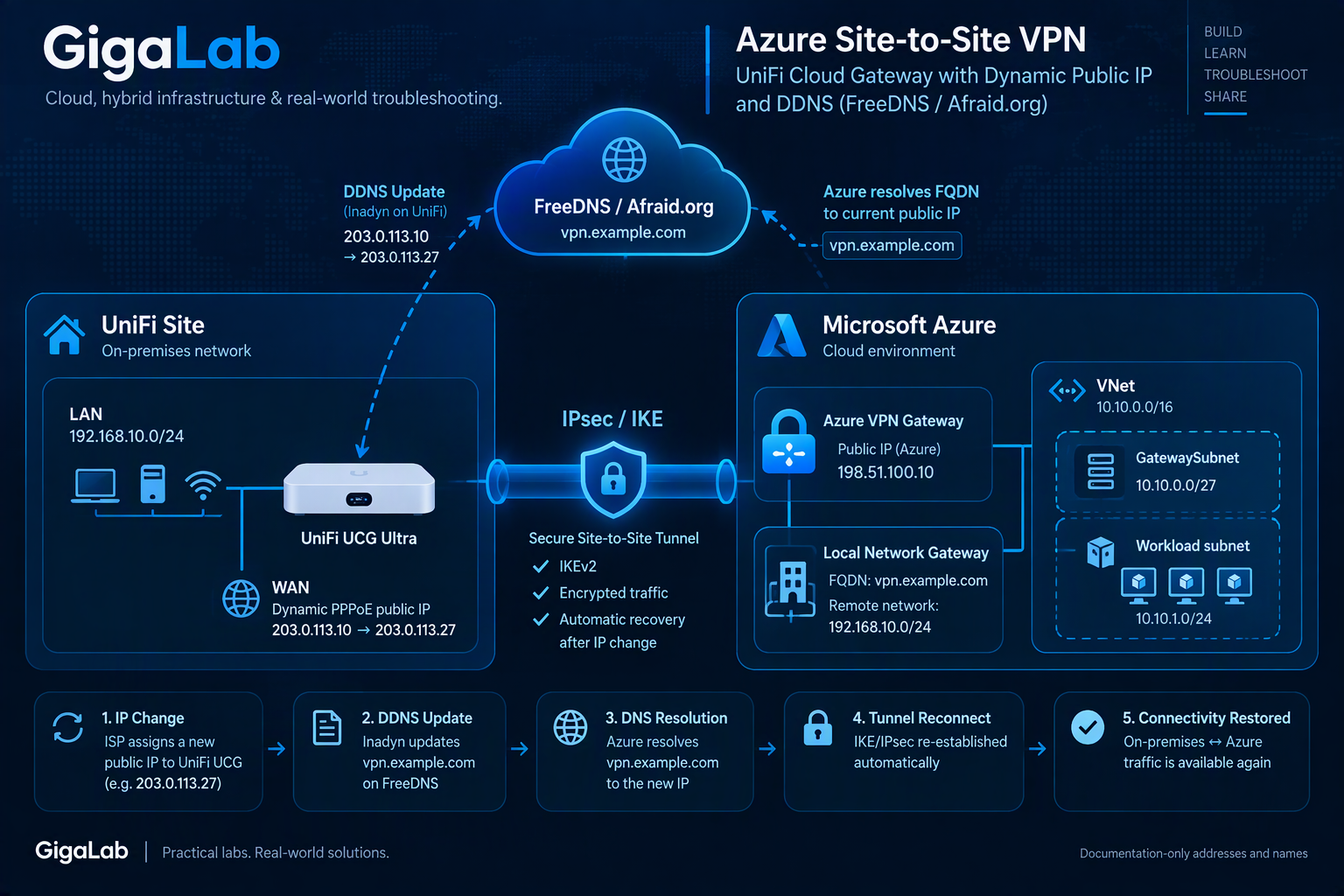
Figure 1. End-to-end architecture for the Azure and UniFi Site-to-Site VPN with Dynamic DNS.
1. Plan the networks
The two sides must use non-overlapping address spaces.
| Side | Address space |
|---|---|
| UniFi LAN | 192.168.10.0/24 |
| Azure hub VNet | 10.0.0.0/16 |
| Azure workload subnet | 10.0.1.0/24 |
On Azure, review the VNet and its subnets before creating the gateway.
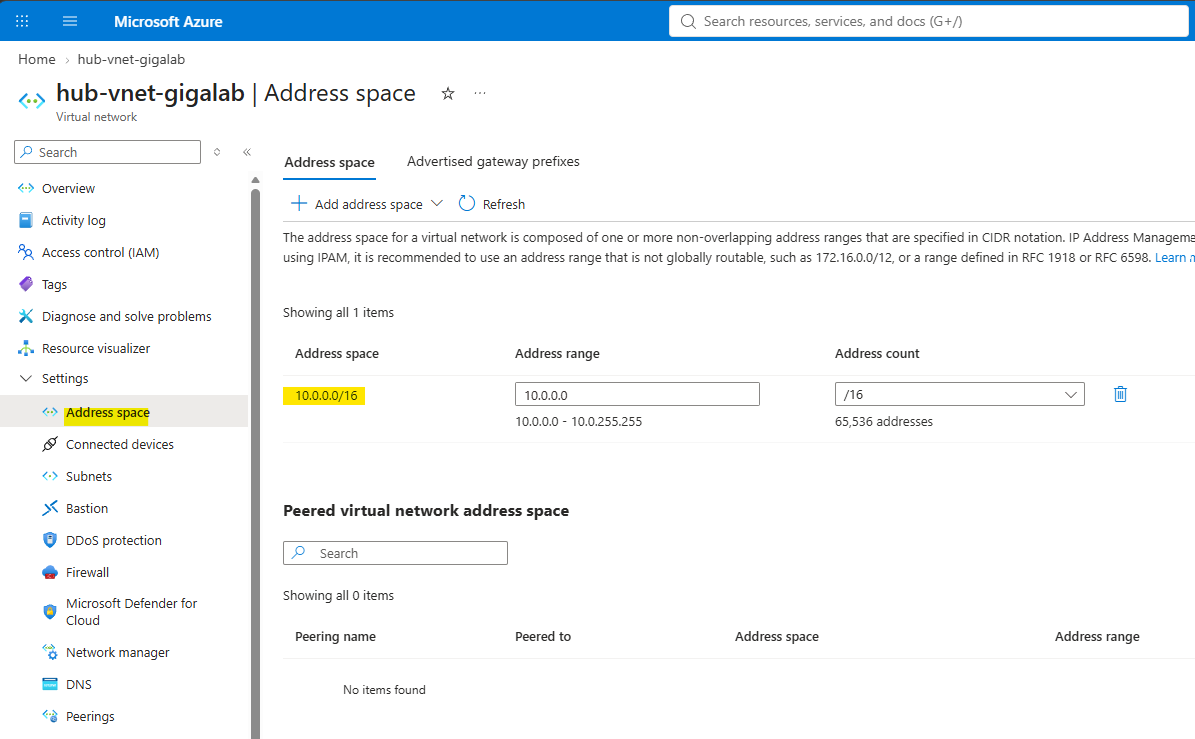
Figure 2. Address space of the Azure hub virtual network used as the VPN landing zone. Sensitive identifiers have been redacted.
2. Create or prepare the Azure hub VNet and GatewaySubnet
Create or reuse the documentation hub VNet, hub-vnet-gigalab. Then create a dedicated subnet named exactly:
GatewaySubnet
GatewaySubnet is reserved for the virtual network gateway. Do not deploy regular workloads into it.
For this documentation-only example, use the following subnet plan:
Hub VNet:         10.0.0.0/16
GatewaySubnet:    10.0.0.0/27
Workload subnet:  10.0.1.0/24
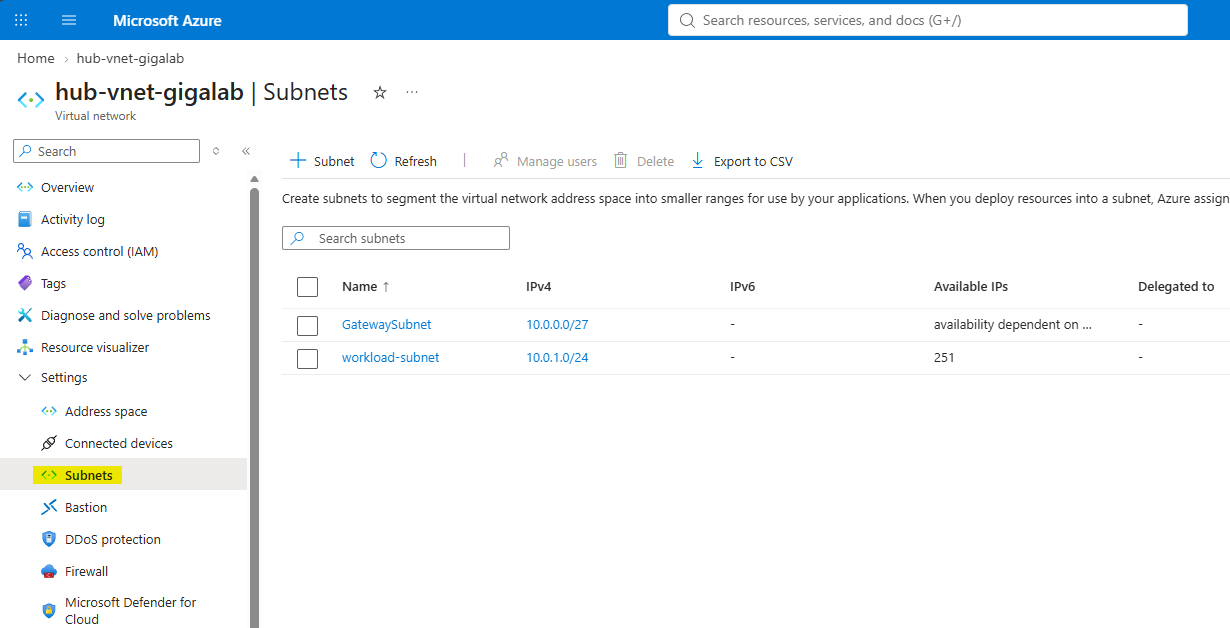
Figure 3. Subnet layout of the Azure hub VNet, separating the VPN gateway infrastructure from application workloads.
3. Deploy Azure VPN Gateway
Create a Virtual network gateway and associate it with the hub VNet.
The key design choices are:
Gateway type:        VPN
VPN type:            Route-based
Virtual network:     hub-vnet-gigalab
Public IP example:   198.51.100.10
The public IP of Azure VPN Gateway becomes the remote peer configured on the UCG. In this article, 198.51.100.10 is used as a documentation-only example.
Select an Azure VPN Gateway SKU appropriate to the expected throughput, availability and feature requirements. The example deliberately avoids exposing the SKU used in the private lab.
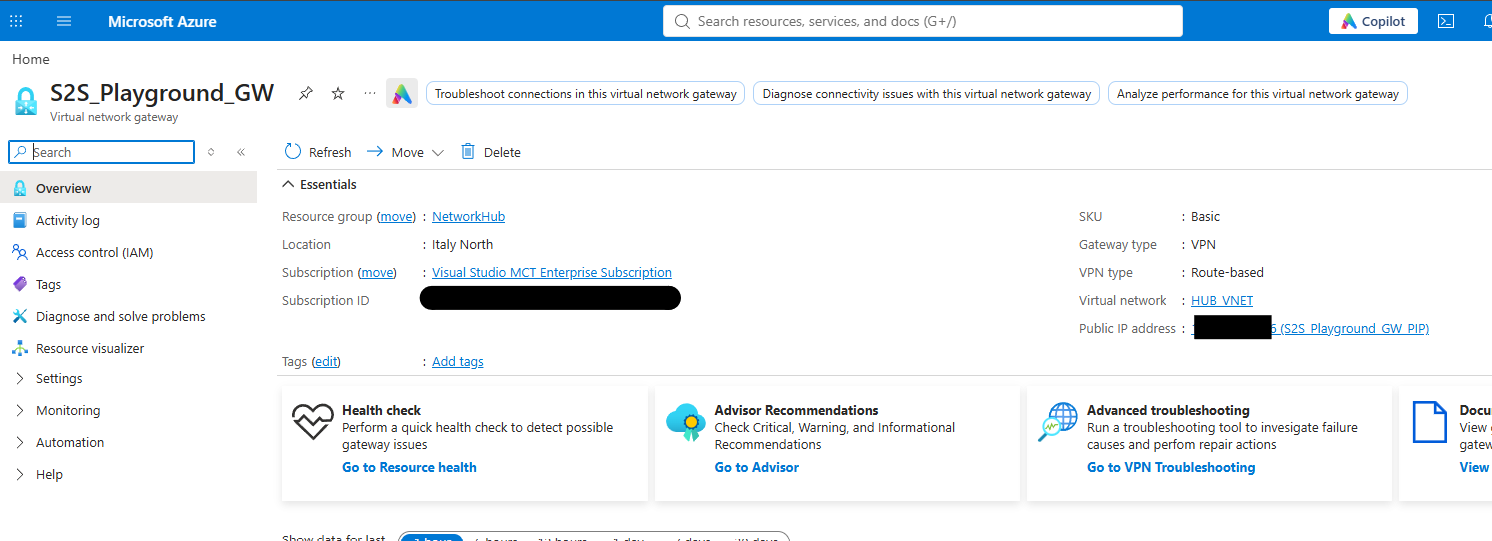
Figure 4. Azure VPN Gateway overview with gateway type, VPN type, SKU and public IP.
4. Create the DDNS hostname
Because the UCG WAN address is assigned dynamically via PPPoE, Azure should not depend on a fixed UniFi public IP.
Create an A record with FreeDNS/Afraid. The published examples use:
vpn.example.com
At this point the record only needs to exist. Automatic updates from the UCG are configured later.

Figure 5. FreeDNS Dynamic DNS record. Never expose its Direct URL or update key.
5. Create the Azure Local Network Gateway with an FQDN
Create a Local network gateway representing the UniFi location.
Use the DDNS name as the peer endpoint and the LAN behind the UCG as the remote address space:
Endpoint type:  FQDN
FQDN:           vpn.example.com
Address space:  192.168.10.0/24
This is the central design choice. Azure continues to refer to the same hostname even if the ISP changes the UCG public IP.

Figure 6. Azure Local Network Gateway configured with the DDNS FQDN and the generic UniFi LAN prefix.
6. Create the Azure Site-to-Site connection
Create a connection between the Azure VPN Gateway and the Local Network Gateway.
Connection type:           Site-to-site (IPsec)
Virtual network gateway:   <Azure VPN Gateway>
Local network gateway:     <UniFi Local Network Gateway>
Shared key (PSK):           <YOUR-STRONG-PSK>
Store the PSK securely. The exact same value is configured on UniFi.

Figure 7. Azure Site-to-Site connection. The shared key must be fully redacted.
7. Configure the IPsec Site-to-Site VPN on the UCG
In UniFi Network, open:
Settings -> VPN -> Site-to-Site VPN
Create a manual IPsec connection to Azure.
The peer relationship is:
UniFi                                     Azure
-----                                     -----
WAN1 / PPPoE public IP  <------------>    VPN Gateway public IP
192.168.10.0/24          <------------>    10.0.0.0/16
Configure:
- Azure VPN Gateway documentation IP
198.51.100.10as Remote IP / Hostname - the same PSK configured in Azure
- the Azure VNet prefix(es) as the remote networks/routes required by the VPN mode
- compatible IKE/IPsec parameters on both peers
Configure a generic, matching IPsec proposal
Both peers must use mutually compatible settings. Azure can use its default proposal set for broad interoperability, or you can configure an explicit custom policy on the Azure connection. If a custom policy is used, the UCG must support and match the selected parameters.
| Setting | Documentation guidance |
|---|---|
| VPN mode | Route-based on both Azure and UniFi |
| IKE version | IKEv2 |
| Encryption | Azure default proposals, or an explicitly documented matching custom policy |
| Integrity/hash | Azure default proposals, or an explicitly documented matching custom policy |
| DH group | Must be supported and matched by both peers |
| PFS | Must be supported and matched by both peers |
| IKE lifetime | Keep compatible on both peers |
| IPsec/Quick Mode lifetime | Keep compatible on both peers |
| Remote networks | 10.0.0.0/16 |
| Remote peer | Azure VPN Gateway public IP |

Figure 8. UniFi Site-to-Site VPN configuration.

Figure 9. IKE and IPsec settings used to establish interoperability. Redact the PSK and any sensitive identifiers.
8. Establish the tunnel and test connectivity first
Before adding DDNS automation, verify that the basic IPsec tunnel works.
UniFi should report the tunnel as:
Status:           Established
VPN Type:         IPsec
Interface:        WAN1
Remote IP / Host: 198.51.100.10
Test between actual endpoints behind each gateway, not just between the gateways themselves.
For validation, deploy or use a test workload in 10.0.1.0/24, for example 10.0.1.4.

Figure 10. UniFi reporting the Azure IPsec tunnel as Established.

Figure 11. Azure reporting the Site-to-Site connection as Connected.
9. Configure Dynamic DNS on UniFi
Now configure the WAN DDNS profile:
Service:   Afraid
Hostname:  vpn.example.com
Username:  <FreeDNS UserID>
Password:  <FreeDNS password>
Server:    empty
The important detail from this lab is that the working username was the FreeDNS UserID, not the e-mail address associated with the account.

Figure 12. Working UniFi Afraid/FreeDNS DDNS settings. Redact password and account identifiers.
10. Troubleshooting: DDNS did not update after reboot
After a UCG reboot, PPPoE could receive a new public IPv4 address, but initially the DNS record did not follow it.
Instead of changing the VPN, I checked the DDNS pipeline layer by layer.
Confirm Inadyn is running
ps -ax | grep inadyn
The process showed an Inadyn instance bound to ppp0 and a generated runtime configuration file.
Inspect the generated configuration
cat /run/ddns-ppp0-inadyn.conf
Conceptually:
iface = ppp0

provider afraid:1 {
    hostname = "vpn.example.com"
    username = "<configured username>"
    password = "<password>"
}
Security warning: the generated file can expose the DDNS password in clear text. Never publish an unredacted output.

Figure 13. Sanitized Inadyn runtime configuration.
Read the Inadyn logs
journalctl | grep -i inadyn | tail -50
The relevant failure was:
Update forced for alias vpn.example.com, new IP# 203.0.113.10
=> ERROR: Could not authenticate.
This isolated the failure nicely. PPPoE was up, Inadyn was running, the new address was detected and an update was attempted. Authentication was the failing layer.

Figure 14. The Could not authenticate error, sanitized for publication.
11. Root cause: FreeDNS UserID vs e-mail address
The FreeDNS account exposes an e-mail address and a separate UserID.
The original UCG profile used the e-mail address as its username. After replacing it with the FreeDNS UserID, Inadyn restarted and the update succeeded:
In-a-dyn version 2.13.0 -- Dynamic DNS update client.
Guessing DDNS plugin 'default@freedns.afraid.org' from 'afraid:1'
Update forced for alias vpn.example.com, new IP# 203.0.113.10
Updating IPv4 cache for vpn.example.com
No custom Server/Update URL was required in the working UniFi configuration.

Figure 15. FreeDNS exposes UserID separately from e-mail. Redact both real values.

Figure 16. Successful Inadyn update after correcting the UserID.
12. Definitive recovery test
The definitive test was a real UCG reboot.
Step 1: capture the current public IP
ip -4 addr show ppp0
Step 2: reboot the UCG
After the reboot, PPPoE assigned a different public address.
Sanitized example:
inet 203.0.113.27 peer 172.16.255.8/32 scope global ppp0
Step 3: watch DDNS recovery
journalctl -f | grep -i inadyn
The expected update appeared:
Update needed for alias vpn.example.com, new IP# 203.0.113.27
Updating IPv4 cache for vpn.example.com
Step 4: verify public DNS
Resolve-DnsName vpn.example.com
The A record matched the new PPPoE public IP. In the test, the FreeDNS answer had a TTL of 60 seconds. Tunnel recovery can take longer than the DNS TTL because it also depends on DNS re-resolution, IKE retry timers and IPsec renegotiation.

Figure 17. FQDN resolving to the new public IPv4 address after reboot.
Step 5: verify IPsec recovery
After the DNS update and IKE/IPsec renegotiation, UniFi reported:
Status:           Established
VPN Type:         IPsec
Local IP:         <new PPPoE public IPv4>
Interface:        WAN1
Remote IP / Host: 198.51.100.10

Figure 18. The Site-to-Site VPN recovered using the newly assigned PPPoE public IP.
I repeated the reboot a second time. The VPN recovered again without manually changing either Azure or UniFi.
The recovery path is therefore:
UCG boot
  -> PPPoE establishment
  -> new public IPv4
  -> Inadyn detects the change
  -> FreeDNS updates the A record
  -> DNS refresh
  -> IKE/IPsec renegotiation
  -> tunnel Established
Recovery is not instantaneous because every stage in that sequence takes some time.
13. Troubleshooting runbook
The VPN never establishes during the initial build
Check, in order:
- Azure VPN Gateway has a public IP.
- Azure Local Network Gateway contains the correct UniFi LAN prefixes.
- Azure and UniFi use the same PSK.
- VPN mode expectations match.
- IKE version, encryption, integrity, DH/PFS and lifetimes match.
- Azure and UniFi address spaces do not overlap.
- Firewall and traffic rules permit the required traffic.
The VPN worked until the ISP changed the UCG address
Check the UCG WAN address:
ip -4 addr show ppp0
Then resolve the FQDN:
Resolve-DnsName vpn.example.com
If they differ, troubleshoot DDNS before touching IPsec.
The DDNS record is stale
ps -ax | grep inadyn
journalctl | grep -i inadyn | tail -50
For live monitoring:
journalctl -f | grep -i inadyn
ERROR: Could not authenticate.
Verify:
- FreeDNS UserID, not only the account e-mail
- password
- hostname
- generated Inadyn configuration
DNS is correct but the tunnel is still down
Move the investigation to IPsec:
- Azure Connection status
- peer public IPs
- PSK
- IKE negotiation
- IKE/ESP proposals
- routing/traffic selectors
- firewall rules
The tunnel is Established but workloads cannot communicate
Treat this as a routing/security problem:
- verify remote and local prefixes
- inspect Azure effective routes
- inspect NSGs and host firewalls
- inspect UniFi firewall/traffic rules
- test between real clients on both networks
14. Quick symptom matrix
| Symptom | First check | Next check |
|---|---|---|
| VPN never establishes | PSK and peer addresses | IKE/IPsec proposals |
| VPN drops after ISP reconnect | ppp0 public address |
DDNS A record |
| DNS points to old IP | Inadyn logs | FreeDNS UserID/credentials |
Could not authenticate |
FreeDNS UserID | Password and hostname |
| DNS is correct, tunnel down | Azure Connection | IKE/IPsec negotiation |
| Tunnel established, no traffic | Routes and prefixes | NSG/firewall/traffic rules |
15. Lessons learned
The most useful troubleshooting approach was to treat the solution as a dependency chain instead of one large VPN problem:
UCG WAN / PPPoE
      |
      v
Inadyn
      |
      v
FreeDNS A record
      |
      v
Azure Local Network Gateway FQDN
      |
      v
IKE / IPsec
      |
      v
Tunnel Established
      |
      v
Workload connectivity
That makes it much easier to distinguish a DDNS authentication failure from an Azure VPN problem, or a routing/firewall problem from a tunnel-establishment problem.